
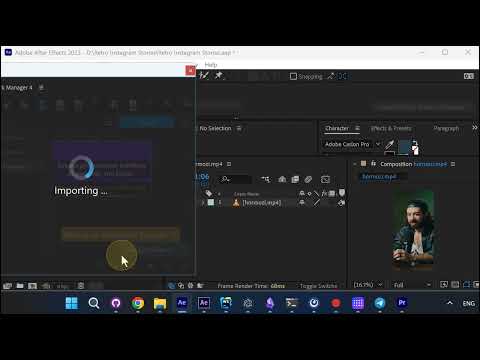
Two languages of subtitles on screen usually means transcribing once, translating by hand, then building a second set of text layers and lining them up. Auto Subtitles does it from the audio already on your timeline.
The whole thing takes three steps:
1. Import a Dual Language Subtitles style
In Pack Manager, open the Dual Language Subtitles category and press Import on the style you like. Nothing is transcribed yet - you are only choosing how the subtitles will look.
2. Set the language and the position
In the settings dialog:
- Source:
Timelinereads the audio already on your timeline (there is aFileoption if the audio lives outside the project) - Language: leave it on
Autoand the spoken language is detected for you - Position:
Bottomis the standard subtitle placement - Translation: this is the second language - in the video it is set to Spanish. Every language in the list carries its flag, so the one you want is easy to spot
- Profanity:
Partialmasks strong language
3. Press OK
The clip is transcribed, translated, and a Dual Language Subtitles layer lands above your footage, timed to the speech. Both languages animate together in the style you imported.
After that it is ordinary After Effects - move the layer, restyle the text, retime it. Nothing is locked.
Auto Subtitles: Auto Subtitles - AEJuice
Auto Captions: Auto Captions - AEJuice