
The Premiere Pro version of this - the After Effects walkthrough is here: How to make dual language subtitles in After Effects (both languages, one pass)
Two languages of subtitles usually means transcribing the clip, translating it by hand, then building a second caption track and lining it up. Auto Subtitles reads the audio already on your sequence and does it in one pass.
1. Import a Dual Language subtitle style
Open the AEJuice Pack Manager 4 panel inside Premiere, go to Dual Language, pick a style - in the video it is Dual Language Subtitles Large - and press Import. Nothing is transcribed yet, you are only choosing how the subtitles will look.
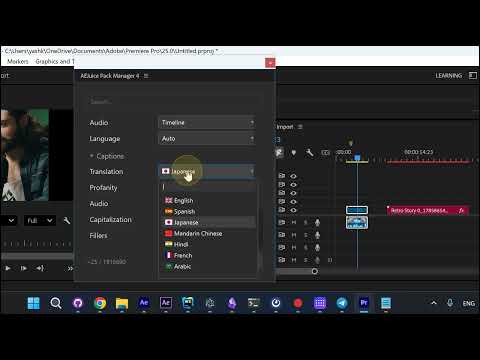
2. Set the source and the second language
- Audio:
Timelineuses the audio already on your sequence - Language:
Autodetects the spoken language for you - Translation: the second language - here Spanish. Every language in the list carries its flag
- Profanity:
Partialmasks strong language - Capitalization:
Sentence case - Fillers:
Keepleaves “um” and “uh” in, switch it if you want them stripped
3. Press OK
The clip is transcribed, translated, and the subtitle clips land on your timeline in time with the speech, both languages together in the style you imported.
After that it is ordinary Premiere - move the clips, restyle the text, retime them. Nothing is locked.
Auto Subtitles: Auto Subtitles - AEJuice
Auto Captions: Auto Captions - AEJuice