
Premiere’s Synchronize command works on clips that are on separate tracks. If your clips are stacked
one after another on a single track, there is nothing for it to align. AEJuice Pack Manager 4 has a
script that fixes exactly that: Spread to Tracks.
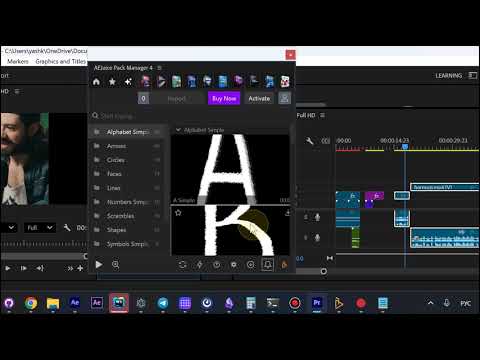
1. Select the clips and open the scripts menu
With the clips selected in the timeline, open the scripts menu in AEJuice Pack Manager 4. It holds
Sound Effects, Voiceover AI, Auto Captions, Auto Subtitles, and the Audio, Captions, Utility and
Video submenus.
2. Run Spread to Tracks
Under Video you get AI Hook, Multicam Podcast, Slideshow, Spread to Tracks and Long to Shorts.
Run Spread to Tracks - every selected clip is moved onto a track of its own.
3. Right click and pick Synchronize
Pack Manager confirms it in the panel: “Each clip is on its own track, right click the selection and
pick Synchronize”. That is now possible, because the clips are no longer sharing one track.
4. Choose Clip Start
The Synchronize Clips dialog offers Clip Start, Clip End, Timecode, Clip Marker and Audio track
channel. Pick Clip Start and press OK.
5. Everything lines up
Premiere processes the audio and lines every clip up on the same point, so the whole selection starts
together.
Get AEJuice Pack Manager: Pack Manager - AEJuice