
After Effects slows down as projects grow — heavy previews, bloated memory, unused footage, and live expressions all pile up. Speed Check inside the AEJuice Pack Manager scans your project and lists one-click fixes so you can make previews and renders faster without hunting through menus.
Optimize After Effects speed
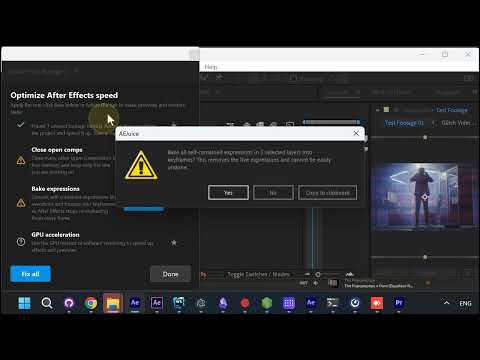
The Speed Check panel is titled Optimize After Effects speed. It surfaces the tips that actually move the needle, each with its own one-click button — or hit Fix all to run them together.
- Preview resolution — set the active comp preview to Quarter so previews render up to four times faster while you work, then back to full for the final render.
- Purge memory and cache — free memory and disk cache when previews stop updating or changes don’t show.
- Remove unused footage — strip unused footage items out of the project to shrink and speed it up.
- Close open comps — close comps you aren’t working on to free memory.
Apply fixes one at a time
Each fix runs on its own. Click Remove unused footage and it removes them immediately, confirming with a small toast — “Removed 1 unused footage item(s)”. No dialogs to dig through, no guessing which setting to change.
Bake expressions
Bake expressions converts self-contained expressions into keyframes so After Effects stops re-evaluating them on every frame. Speed Check warns first: “Bake all self-contained expressions into keyframes? This removes the live expressions and cannot be easily undone.” Choose Yes to bake, No to skip.
More speed tips
Speed Check keeps going with more targeted fixes:
- Find slow layers — scan the timeline, item columns and render time to find your slowest layers.
- Close other programs — free CPU and memory for After Effects.
- Render as draft — export a quick, lower-quality preview render (AI tab > Render > Export Draft) instead of a full-quality one.
- Import pack as video — bring an asset in already pre-rendered as video so it plays back faster than the live project.
- GPU acceleration — use the GPU instead of software rendering to speed up effects and previews.
Import packs as video
The last tip ties into Pack Manager directly. Right-click any asset and choose Import as video — pick the resolution you need (4K, HD, or SD) and it comes in as a pre-rendered clip that plays back far faster than the original live project.
Get it
Speed Check ships with the AEJuice Pack Manager: Pack Manager - AEJuice