
Cutting every “um,” “uh,” repeat, and dead pause out of a talking-head clip by hand is the slowest part of editing. AEJuice Text Based Editing does it from the transcript: it listens to your audio with AI, marks everything worth cutting, and tightens the whole clip into a clean precomp in one click.
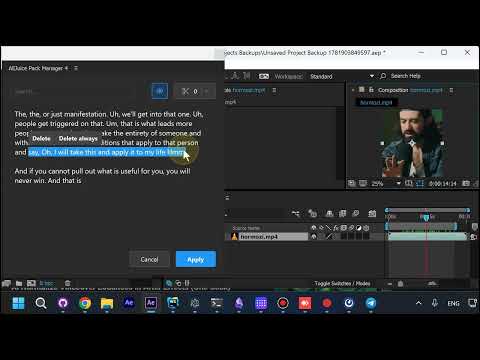
Step 1: Run Text Based Editing on your clip
Drop your talking-head footage into After Effects, open the AEJuice panel, and run Text Based Editing on the layer.
Step 2: Let AI mark the fillers, repeats, and pauses
It transcribes your audio and instantly crosses out every filler word, repeated phrase, and long pause it detects in the transcript.
Step 3: Preview the cleaned result live
Tap the eye icon to preview exactly how the clip will play after the cuts, before you commit to a single one.
Step 4: Tune the detection and keep what you want
Open detection settings to control how aggressive the cleanup is, and keep or restore any individual word the AI marked.
Step 5: Apply and keep editing
Click Apply and Text Based Editing cuts everything down into a clean, tightened precomp right on your timeline, ready to keep editing.
Try it yourself
Text Based Editing is part of the AEJuice AI toolset for After Effects. Get the free plugins and clean up your next talking-head edit in seconds.