
Translating motion graphics by hand is brutal — every text layer, every comp, every style has to be recreated. With AEJuice’s AI translate, you can translate an entire project in seconds while keeping fonts, sizes, and styling intact.
Step 1: Open the AI Menu
Open the AEJuice plugin and click into the AI menu to find the translation tools.
Step 2: Choose Your Scope
By default the scope is set to Entire Project, but for testing you can switch to Active Comp so only the open composition gets translated.
Step 3: Pick a Language and Translate
Select your target language from the dropdown and press Translate.
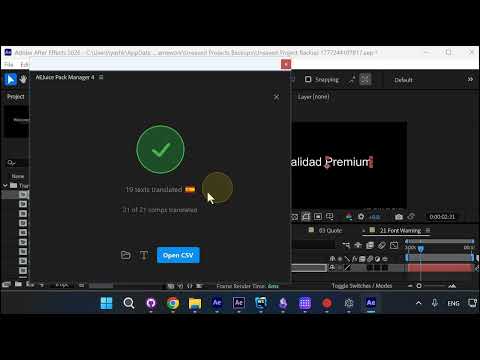
Step 4: Review the Result
The text comes back translated with the original style, size, and formatting preserved — no manual rework needed.
Step 5: Translate Comp by Comp (Optional)
If you would rather review each composition before applying, you can run the translation one comp at a time.
Step 6: Export to CSV for Client Review
Once translated, you can export a CSV to send to your client. The CSV shows the original alongside the translation.
Step 7: Preserve Styles in the CSV
The B and I markers represent bold and italic, and font sizes are also tracked. Tell your client to only edit the translation column — everything else needs to stay untouched so styles can be reapplied cleanly.
Conclusion
What used to take hours of manual text editing now takes a few clicks. Whether you’re localizing a single comp or an entire project, AI translate keeps your design intact while doing the language work for you.
Try it free at aejuice.com.