
Don’t waste time rendering your entire timeline when you only need a small section. Premiere Pro’s In and Out points let you preview or export any portion in seconds.
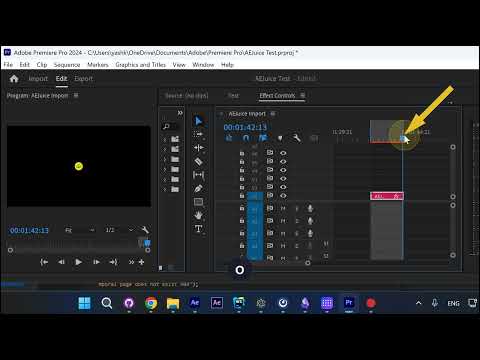
Step 1: Set the In Point
Move your playhead to where you want to start. Press I on your keyboard to mark the In point.
Step 2: Set the Out Point
Move the playhead to where you want to end. Press O to mark the Out point.
Step 3: Preview or Export
Press Enter to render a preview of just that section. To export it, go to Sequence > Export In to Out.
Conclusion
In and Out points are essential for fast editing in Premiere Pro. Use I and O to mark your range, then Enter to preview or export — no more waiting for the full timeline to render.