
Nothing ruins a great edit faster than captions clipped by Instagram’s UI, a YouTube progress bar, or a TikTok action button. Here’s a quick way to check your captions against every major platform’s safe zone — right inside After Effects.
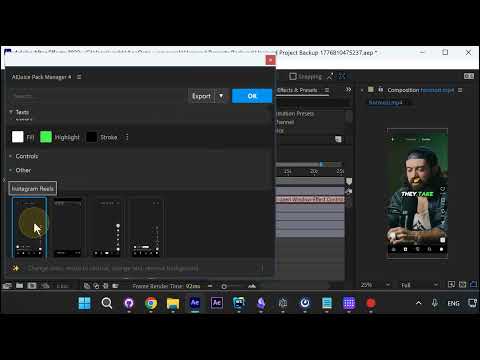
Step 1: Open the Edit Menu
Open your project with the AE Juice Auto Captions tool and click Edit in the panel.
Step 2: Find the Safe Zones Option
Scroll down in the Edit menu until you see Safe Zones. This is where every supported platform lives — Instagram, TikTok, YouTube, and more.
Step 3: Pick a Platform
Click on the platform you’re exporting for. A guide overlay appears on top of your comp showing exactly where that platform’s UI will cover your frame.
Step 4: Preview Across Every Platform
Cycle through the platforms to confirm your captions stay readable everywhere — not just where you’re exporting today.
Step 5: Export With Confidence
The safe zone overlay is a guide layer, so you can leave it enabled while you work. It won’t show up in the final render.
That’s It
One menu, every platform, zero surprises at export. If you’re publishing vertical video across Reels, Shorts, and TikTok, this check takes 10 seconds and saves hours of re-exports.
Try Auto Captions free at aejuice.com.