
Not every asset needs to be fully editable. When you just need an AEJuice element on screen, importing the full project version is overkill - it loads more than your composition needs and slows things down. Pack Manager has a lighter option built right into the right-click menu.
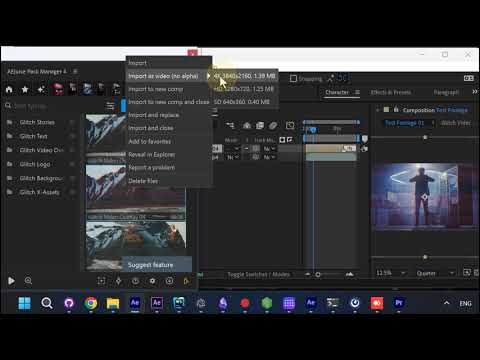
Right-click the item you don’t need to edit
In Pack Manager, right-click the item. If you won’t be changing its text, colors, or controls, you don’t need the full project - so reach for the video import instead.
Choose Import as video (no alpha)
From the menu, choose Import as video (no alpha). Instead of the full project, this brings the element in as a prerendered clip - far lighter than the full project version, so your composition stays fast and responsive.
Pick the resolution that matches your composition
The submenu lets you pick a resolution (for example 4K, HD, or SD, each showing its file size). Match it to your composition: if you’re working in a Full HD comp, a Full HD prerender is lighter than 4K and looks identical at that size. There’s no reason to carry 4K weight in an HD comp.
Non-alpha vs alpha: use a blending mode
A no-alpha video is lighter than one with a transparent alpha channel. When you can get away with it, choose the non-alpha version and simply set a blending mode on the layer to hide the black background. You get the look without the extra weight.
Quick recap
- Need to edit the item → import the full project version
- Just need it on screen → Import as video (no alpha)
- Match the prerender resolution to your composition (Full HD comp → Full HD prerender)
- Non-alpha + a blending mode is lighter than alpha when you can use it
That’s the whole trick: lighter imports, a faster project, and the same result on screen.
Get Pack Manager to start importing AEJuice elements the light way.