
Some animations are way faster to build in After Effects than Premiere. Here’s how to customize an AEJuice template and export it as a video file for Premiere Pro in minutes.
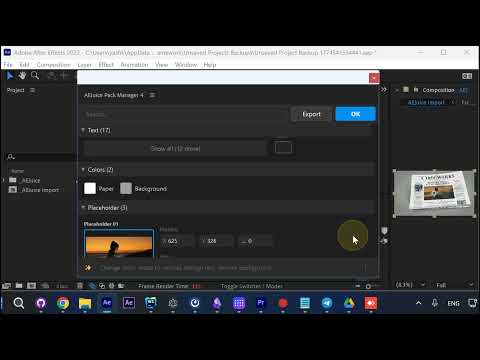
Step 1: Open Pack Manager in After Effects
Go to Window > Pack Manager in After Effects. If you already have AEJuice installed for Premiere, it’s also available in After Effects — same login works for both.
Step 2: Import Your Animation
Find the package you want, open it, and click Import to bring the animation into your project.
Step 3: Press Edit and Customize
Click Edit to open the customization panel. Change text, colors, and placeholders manually — or type a request and let AI do it for you.
Step 4: Export as MP4
Press Export and select MP4 (or MOV for transparency). The render may take a few minutes — don’t worry if After Effects becomes unresponsive, that’s normal.
Step 5: Drag Into Premiere
Drag and drop the exported video into Premiere Pro. Since it’s a pre-rendered video file, it plays back instantly with no rendering needed.
Conclusion
Using After Effects for complex animations and exporting to Premiere gives you the best of both worlds — full customization power with fast Premiere playback. You can always go back to After Effects to re-export any changes.