
Long interviews take forever to edit. Scrubbing through footage, finding cut points, trimming clips — it’s the most tedious part of post-production. With AEJuice Pack Manager’s Text Based Editing, you can edit your video by editing text. Select words, delete them, and the video edits itself.
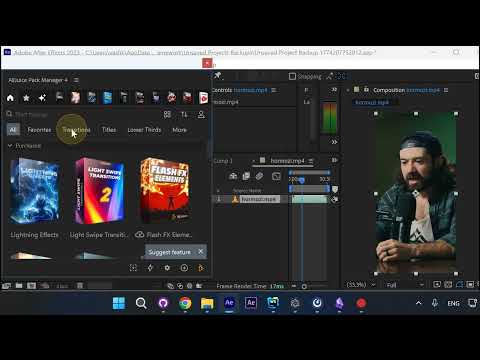
Step 1: Select a Layer with Audio
In your After Effects timeline, select the layer that contains the audio you want to edit.
Step 2: Click Text Based Editing
In Pack Manager, open the Voiceover AI dropdown and select Text Based Editing. The tool transcribes your audio and displays the full text.
Step 3: Select Text and Press Delete
Read through the transcript and highlight the words or sentences you want to cut. Press Delete to remove them. It works just like editing a document.
Step 4: Press Apply
Click Apply to process your edits. The original audio layer is disabled and a clean cut version is added as a new layer on your timeline.
Conclusion
Text Based Editing turns hours of interview editing into minutes. Instead of scrubbing through footage, you read the transcript, delete what you don’t need, and let the tool handle the cuts.