
The Retro TV in Dark Room template turns a pile of photos or clips into a nostalgic, cinematic wall of vintage TVs — and you don’t need any After Effects skills to make it look great. Here’s how to customize it start to finish in just a couple of minutes.
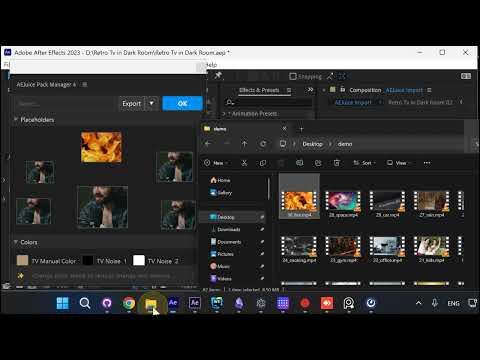
Step 1: Import the Template
Open the Pack Manager and import the Retro TV in Dark Room element into your After Effects project. One click and the whole scene is ready to edit.
Step 2: Select Photos or Videos
You’ll be prompted to pick the media you want to appear on the TV screens. You can load footage from disk, pull from your current project using the arrow button, or grab something from recent files.
Step 3: Review the Default Placeholders
By default, your selected footage gets distributed across every TV placeholder automatically. The placeholder layout on the left mirrors the TVs you see in the composition — so you always know which slot belongs where.
Step 4: Drag and Drop to Customize
Want a specific clip on a specific TV? Just drag and drop the footage onto the placeholder you want. Swap, replace, or rearrange freely until every screen feels right.
Step 5: Let AI Center the Faces
When you drop a photo in, AI automatically detects the face and centers it within each screen. No manual reframing, no awkward cropping — subjects stay where they belong.
Step 6: Export Your Video
Once you’re happy with the layout, hit Export. You’ll get a clean MP4 ready to drop into any project — social media, YouTube, a client timeline, wherever.
Step 7: Play and Use
Your finished video opens automatically as soon as the render is done. Play it back to double-check everything looks right, then use it however you like — standalone, or dropped into a larger composition as a nested comp.
Conclusion
That’s the whole workflow — import, pick your media, fine-tune the placeholders, and export. The AI-assisted placement does most of the heavy lifting, so you can finish a cinematic retro montage in minutes instead of hours.
Get the template here: Retro TV in Dark Room
Also part of Pack Manager: Pack Manager - AEJuice