
Editing a YouTube Subscribe element from AEJuice Pack Manager inside Premiere Pro is quick once you know where each control lives. Almost everything is grouped in one panel - and there’s a single exception, caused by an Adobe Premiere limitation, that trips people up.
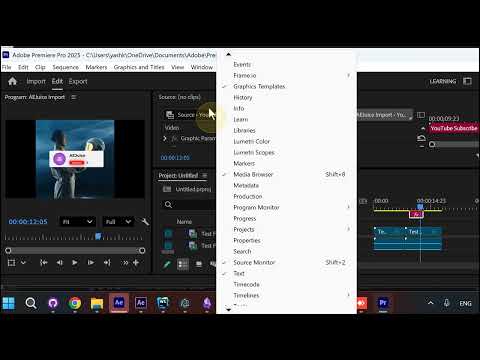
Start with the clip in your timeline
Select your AEJuice YouTube Subscribe element in the Premiere timeline. This is the clip whose channel name, text, colors, and logo you want to change.
Open the Pack Manager Edit panel
Open the Edit panel in Pack Manager. Every text line, font, size, and color for the template is grouped and organized right here in one place - no hunting through Effect Controls, no guessing which layer holds which value.
Edit text and fonts directly
Type your channel name and the other text lines straight into the fields, and swap fonts (for example Montserrat-ExtraBold or Montserrat-Medium) from the dropdowns next to each line. Keep going for the rest of the styling: more text lines, sizes, and colors, all in the same tidy panel.
The one exception: placeholders
Image and logo placeholders can’t be edited from the Edit panel. The panel says it plainly: placeholders can’t be edited there because of an Adobe Premiere limitation. To change them, select the clip in the timeline, then open Window - Properties.
Swap the logo in the Properties panel
In the Properties panel you’ll find Placeholder 01 - the one thing Premiere won’t let the Edit panel touch. Swap your logo in there. Everything else stays grouped and organized in Pack Manager.
Quick recap
- Channel name, text, fonts, sizes, colors → Pack Manager Edit panel
- Logo / image placeholder → Window - Properties (Placeholder 01)
That’s the whole workflow. Restyle the Subscribe element in the Edit panel, and drop your logo in through Properties.
Get Pack Manager to start using AEJuice templates in Premiere Pro.