
The AEJuice Real CRT TV pack gives you ready-made news broadcasts, retro TV visuals, and breaking-news overlays — and with the Pack Manager you can swap footage and rewrite all the on-screen text in seconds. Here’s the full workflow.
Step 1: Import a Scene
Open AEJuice Pack Manager, find Real CRT TV, and click the download icon on the scene you like. Pack Manager pulls the composition straight into your project.
Step 2: Replace the Placeholder
Once the scene is in, Pack Manager prompts you to Select Placeholder. The placeholder is highlighted in green directly in the composition so you always know exactly where your footage will land.
You can upload from your drive, pull from the project, or grab one of your recent uploads from the strip at the bottom.
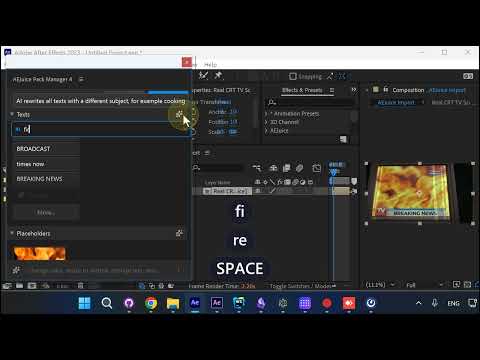
Step 3: Rewrite All Text with AI
Next, open the text panel. You’ll see every on-screen text layer listed — headline, ticker, station name, timestamp. Hit the Rewrite button to let the AI rewrite them all around a new subject.
Type a theme (for example fire) and the AI rewrites every text layer to match.
Step 4: Review the Results
In one click the headline becomes “A raging wildfire has engulfed parts of…”, the location flips to “Lisbon, Portugal”, and the timestamp updates to “MONDAY 16:45” — no manual typing.
Step 5: Export
Hit Export and the finished broadcast drops back into your After Effects composition with your footage and the new AI-written text baked in.
Try It Yourself
The full workflow — import, swap placeholder, AI-rewrite text, export — takes under a minute per scene. Grab the Real CRT TV pack and try it on your next broadcast or social edit: aejuice.com