
Recoloring a template shouldn’t mean digging through comp after comp. Pack Manager’s color editor lets you swap palettes, shuffle shades, pull colors from an image or live comp, and even generate new palettes with AI — all from one panel.
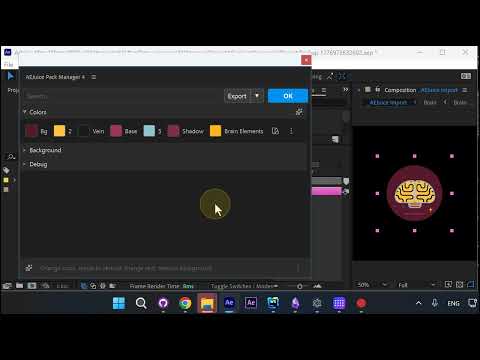
Step 1: Open the Color Editor
Inside Pack Manager, click the Edit button on any project, then change any color by picking a new one from the palette.
Step 2: Swap Individual Colors or Apply a Palette
You can update colors one by one, or jump to a completely different palette in a single click.
Step 3: Identify and Search Colors
Not sure which color goes where? Right-click Identify to flag it in the composition. You can also select any color and it will be highlighted in the Colors section.
Step 4: Shuffle Existing Colors
Happy with your palette but want a different arrangement? Hit Shuffle to reorder the current colors across the project.
Step 5: Extract Colors From an Image or Composition
Pull a palette straight from an image or from your active composition — no manual eyedropping required.
Step 6: Extract From Active Composition
If you choose Active Composition, Pack Manager hides the imported layer and extracts colors from your existing scene, so the template instantly matches your project.
Step 7: Generate a Palette With AI
Not loving any of the built-in palettes? Type the look you want and let AI build a palette for you.
Step 8: AI Uses Your Existing Colors as a Base
The AI generator respects your current colors as a starting point, so the result stays cohesive with your template rather than starting from scratch.
Wrap Up
Between manual edits, palette presets, shuffle, image extraction, active comp extraction, and AI generation, Pack Manager gives you six different ways to recolor a template in seconds.
Try it out: Pack Manager for After Effects