
Auto Captions already transcribes your footage. The new
Title, description and chapters option turns that same transcript into everything you need to
publish the video — no second pass, no copy-pasting into another AI tool.
1. Turn it on in the output settings
In the Auto Captions dialog, open Output and tick Title, description and chapters. It sits
right under Export SRT. Hit OK and captions generate as usual.
2. Read what the AI wrote
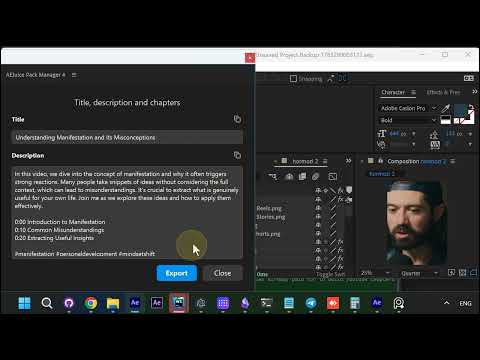
When the pass finishes, the Title, description and chapters window opens with:
- a Title written from the actual content of the video
- a Description summarizing the video
-
chapter timestamps (
0:00,0:10,0:20…) ready for YouTube - hashtags matched to the topic
3. Copy a field with one click
Each field has a copy icon. Click it and the text lands on your clipboard — the button confirms with
Copied. Paste straight into the YouTube upload form.
4. Or export the whole thing
Export writes a plain text file with the title, description, chapter list, hashtags and a
keyword line for tags. One file, everything a publish needs.
5. Captions are already on the timeline
Back in After Effects the captions sit on the timeline in your chosen style, ready to render.
Why it matters
The transcript is the best possible source for a title and description — it is literally what you
said. Generating both from the same pass means the metadata matches the video instead of guessing at
it, and chapters come for free.
Auto Captions is part of the I Want It All Lifetime bundle.
Also part of Pack Manager: Pack Manager - AEJuice