
Recording narration used to mean leaving After Effects, booting up a separate app or a browser tool, generating a voice, exporting a file, and importing it back. Voiceover AI collapses that whole round-trip into a single panel that lives right inside After Effects.
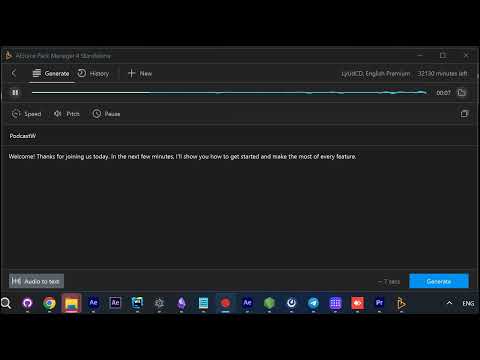
Here’s the complete workflow, start to finish.
A full library of premium voices
Voiceover AI opens with a library of premium voices — English Premium and many more languages and accents. Each voice comes with a playable waveform sample, so you’re never picking blind.
Preview before you commit
Hover any voice to preview exactly how it sounds. Scrub through the sample, compare a few options, and settle on the one that fits your project before you generate a single line.
Paste your script and generate
Paste your script straight into the text box, pick your chosen voice, and click Generate. Type or paste as much as you need — a single line or a full podcast intro.
Ready in seconds
In seconds, your narration is generated and ready to play back. The delivery is natural and lifelike — the kind of read that used to require a voice actor or a separate subscription tool.
Review the delivery
Scrub through the generated voiceover to hear the pacing and intonation. If it’s right, you’re done. If not, tweak the script or swap the voice and regenerate.
Use the finished file anywhere
The result is a finished audio file you can open and use anywhere — drop it into your comp, hand it to an editor, or play it back in any player.
Why it matters
Voiceover AI keeps the entire narration process inside After Effects: browse, preview, generate, review, and export without ever switching apps. For explainers, tutorials, product demos, and social content, that’s a huge cut in turnaround time.
Get Voiceover AI, or grab everything with the I Want It All Lifetime bundle.
Also part of Pack Manager: Pack Manager - AEJuice