
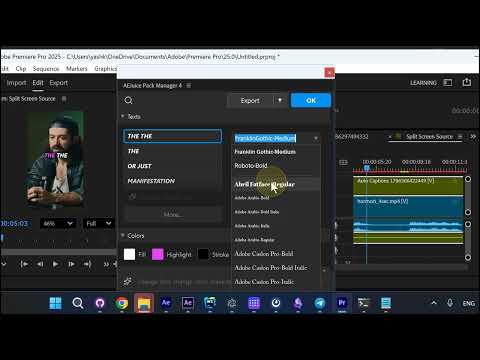
Auto Captions clips are editable after they land on your timeline. The AEJuice Pack Manager edit
dialog gives you every caption line and the type controls for each one, without going near the
Essential Graphics panel.
1. Every caption line in one list
Open the edit dialog on the Auto Captions clip. Under Texts you get each caption line as its own
field — here THE THE, THE, OR JUST and MANIFESTATION — plus a More… button for the rest
and a rewrite-all field at the bottom.
2. Select a line to get its type controls
Click a line and its controls appear next to it: the font it is actually using — Abril Fatface-Regular in this clip — bold and italic toggles, size, and X / Y position.
3. OK applies it
Hit OK and the captions in the sequence update. Colors (Fill, Highlight, Stroke) sit in their own
section right below, so text and look are edited in the same pass.
Note
The font shown is read live from the clip, so reopening the dialog after a font change shows what is
really applied — not the font it had when you first opened it.
Auto Captions: Auto Captions - AEJuice