
Dead air between sentences is the slowest thing in a talking-head edit. Auto Captions can strip it for you, and you control exactly how tight the result is.
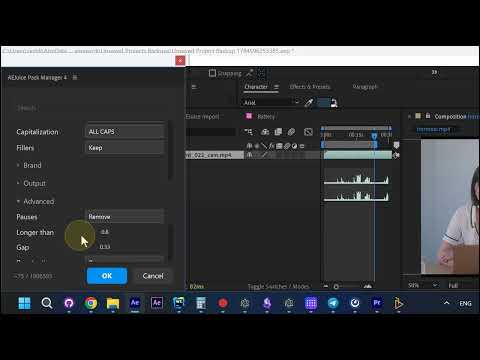
Open Advanced
The pause controls live in the Advanced section of the settings, below Brand and Output.
Set Pauses to Remove
Three controls do the work:
- Pauses - Keep leaves your audio untouched, Remove cuts the silence out
- Longer than - the shortest pause worth cutting, in seconds. Anything briefer stays exactly as recorded, so natural beats survive
- Gap - how much silence is left behind after a cut. Lower is tighter. Set it to zero and phrases sit fully back to back
The defaults shown here - 0.8 and 0.33 - cut anything over eight tenths of a second and leave a third of a second of breathing room. That padding matters. Cutting straight to zero clips the edges of words and strips the breath out of a delivery, which is why the default keeps a little air.
The result
Hit OK and the clips come back split and slid together, with the silence gone.
Each piece keeps its own padding, so the pacing tightens without sounding chopped.
Picking your numbers
Raise Longer than when you want to keep dramatic pauses and only kill genuine dead air - set it to two seconds and a one-second beat survives untouched.
Lower Gap when you want a fast, punchy cut. Raise it when the delivery needs room.