
Every animated template in Pack Manager 4 is fully editable — you can swap the headline, change the font, and recolor every element to match your brand, all without touching a single keyframe. Here’s the full workflow.
1. Pick a template
Open Pack Manager 4 and browse the categories — Arrows, Badges, Development, and more. Pick any animated template to customize.
2. Open the editor and select your text
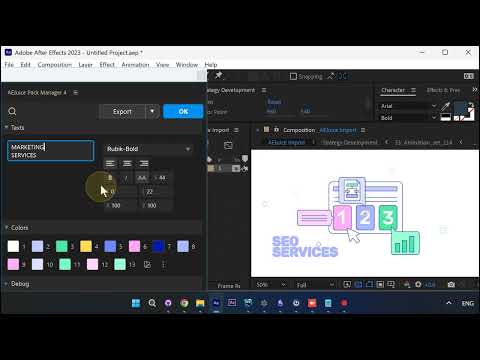
Open the editor and go to the Texts section. Select the headline you want to change — here it’s “SEO SERVICES”.
3. Type new text and choose a font
Type your new copy — “MARKETING SERVICES” — and pick a font from the dropdown, like Rubik-Bold. The composition updates live.
4. Recolor with the Colors section
Scroll down to the Colors section. Every swatch maps to an element in the template, so you can recolor the whole graphic in seconds.
5. Pick an exact shade
Click any swatch to open the Select a color picker and dial in the exact shade you want.
6. Fine-tune spacing and finish colors
Fine-tune the text spacing with Leading, and adjust the remaining colors until everything matches your brand.
7. Your finished graphic, live in the comp
Every change previews live — your finished, rebranded graphic sits right there in the composition, ready to go.
Why it matters
- Every template is editable — text, fonts, and colors, no keyframing required
- Live preview — see changes in the comp as you make them
- On-brand in seconds — recolor the entire graphic from one Colors panel
Try it inside Pack Manager in After Effects.