
The Slideshow constructor in AEJuice Pack Manager 4 takes a folder of photos and videos, a music
track, and a Slides transition pack, and builds the whole sequence in Premiere Pro for you.
Start from a Slides pack
Open any Slides pack in Pack Manager - here it’s the Wedding Collection - and choose
Create slideshow from the import dropdown.
Step 1 - categories
The first step is the transition categories. Select as many styles as you want and the slideshow
mixes them across the sequence.
Step 2 - music
Next comes the soundtrack. Select your music, or tick No music to build the slideshow silent.
Continue moves to the next step.
Step 3 - your media
Browse to the folder holding your footage and select the photos and videos you want in the
slideshow. Multi-select works as usual.
Everything you picked shows up in a grid. The counter tells you how many are selected and how many
more the slideshow can take. Add more with the Folder or Files buttons, drop anything you
don’t want, then press Create.
Step 4 - it builds itself
Pack Manager imports the media and the transitions and assembles the sequence in Premiere Pro,
clip by clip, with a progress readout.
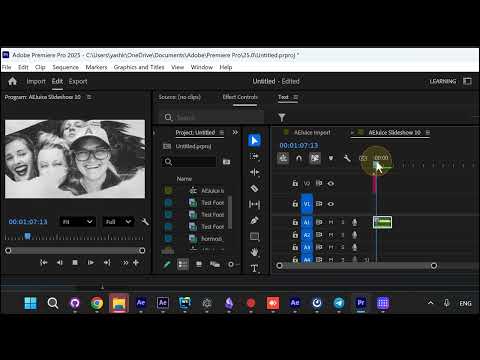
The result
You end up with a finished slideshow sequence in Premiere: your media cut to the music, with a
transition from the pack between every clip.
Every transition comes straight out of the pack, already placed and timed - nothing to drag in,
nothing to line up by hand. From there it’s a normal Premiere sequence, so swap clips, retime, or
replace the music however you like.