
Enable the Render option and Auto Captions exports your finished videos automatically — no manual “Add to Render Queue” step. Here’s every render setting, plus how to leave a 50-video batch running overnight.
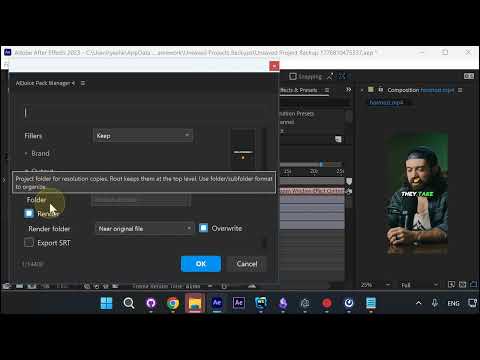
Turn On Render
Expand the Output section and check Render. Auto Captions will add captions and render out the file in one pass.
Render Folder: Near Original or Custom
By default the output file is saved near the original file. Switch the dropdown and you can point to any custom folder. A file picker opens so you can browse anywhere on disk.
Overwrite Existing Files
Tick Overwrite if you want each render to replace the previous output. Leave it unchecked to keep every version side-by-side with numbered suffixes. Default name is the composition name.
Multiple Resolutions for Ad Platforms
Running ads across Meta, TikTok, and YouTube? Tick the resolutions you need — 9:16, 4:5, 1:1, 16:9 — and each one exports as a separate file next to the original.
Organize Outputs Into Folders
The Folder field organizes the resolution copies inside a subfolder. Root keeps them at the top level. Use folder/subfolder format to nest them deeper.
Batch Render with Multiple Files
The real power of the Render option shows up with Multiple files or Multiple compositions as your audio source. Point it at 50 videos, press OK, walk away for a few hours — come back to 50 finished captioned videos with the project saved in case you need to tweak anything.
Wrap Up
The Render option turns Auto Captions into a fire-and-forget batch tool. Combine it with multiple resolutions and folder organization and you’re exporting a full ad set across every platform in one click.
Try Auto Captions for After Effects →
Also part of Pack Manager: Pack Manager - AEJuice