
Auto Captions can grab audio from four different sources: the current timeline, a single file, multiple files, or multiple compositions. Here’s when to use each one — and how to batch-caption 50+ videos in a single pass.
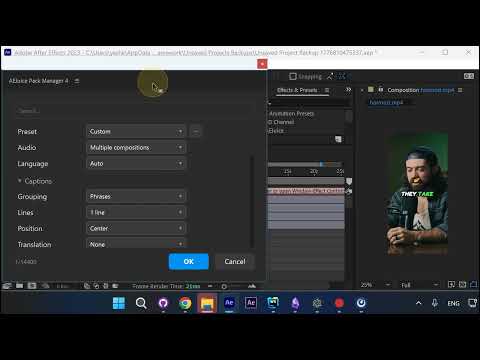
Default: Timeline
Open Auto Captions and the Audio source is set to Timeline by default. It uses the work area duration of whatever composition is open.
All Four Source Options
Click the Audio dropdown to see the full list: Timeline, File, Multiple files, Multiple compositions. Pick based on what you’re captioning.
Batch with Multiple Files
Select Multiple files and after you press OK you’ll be prompted to pick as many videos or audio files as you want. There’s no hard limit — you could run a batch of 50 or 100 videos in one go, bounded only by your available credits.
Batch with Multiple Compositions
If your videos are already in the project as compositions, switch to Multiple compositions, select them in the Project panel, then press OK. Auto Captions will process them all and add the auto text.
Enable Render for Large Batches
For any batch of multiple videos, turn on the Render option in Output. Auto Captions will render each video out and save the project, so you can come back later to tweak anything — but the final files are already done.
Summary
- Timeline → single video, already open in comp
- File → one video/audio file from disk
- Multiple files → batch from disk (50+ OK)
- Multiple compositions → batch from existing project comps
Pair batch modes with Render enabled and you can caption a whole backlog overnight.
Try Auto Captions for After Effects →
Also part of Pack Manager: Pack Manager - AEJuice