
Graphics Overlays listens to the audio already on your timeline, finds the moments worth
highlighting, and builds the overlay layers for you inside After Effects.
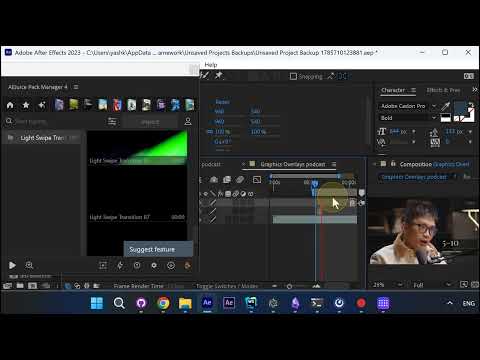
Open the feature
In AEJuice Pack Manager 4, open the AI menu, go to Video, and pick Graphics Overlays.
A small dialog asks for two things: Audio — set to Timeline so it uses the audio in the
open comp — and Language, left on Auto. Hit OK.
It builds the overlays
The transcript is read, the key moments are picked, and a confirmation appears:
Added 2 graphic overlays. Each one lands on the timeline as its own layer, positioned at the
moment it belongs to.
First example
The narration stops here and the comp audio plays on its own. The speaker says a list of five
to 10 things, and the 5-10 overlay is on screen as he says it.
Second example
A few seconds later the line is for six years, I’ve been held back in my career — and the
6 years / held back callout sits in frame for it, then clears. Both are normal layers in the
comp, not a baked render.
Why it matters
Explainer and podcast edits live on spoken numbers and lists. This turns those into on-screen
graphics without you scrubbing the transcript by hand and building each one from scratch.
Graphics Overlays runs from AEJuice Pack Manager: https://aejuice.com/free-plugins/?utm_source=forum&utm_medium=tutorial&utm_campaign=ai-graphics-overlays-after-effects