
Chrome’s native picture in picture is a fixed box: locked aspect, letterboxed content, no captions,
play and seek only. Video Speed Controller Pro pops the video into a real window instead — resizable
to any shape, with subtitles rendered inside it and the extension’s own controls still live.
Get Video Speed Controller Pro
Pop out from the extension panel
The picture in picture button sits in the floating panel next to speed, seek, brightness, screenshot
and loop. The source tab stays put.
No locked aspect, no size cap
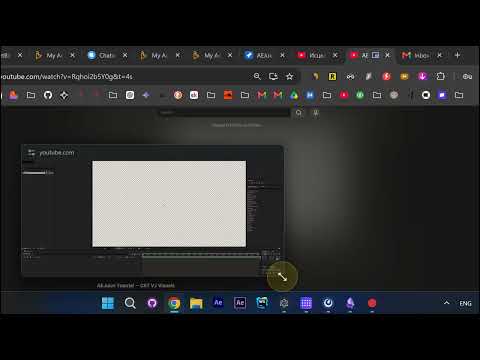
Drag a corner and the window follows to whatever dimensions you want. This is the hard limit of
native picture in picture, gone.
Flat and wide still keeps subtitles
Squash it into a wide strip to track a timeline or a single panel — captions keep rendering inside the
window at that size. Native picture in picture drops them entirely.
Captions off when you don’t want them
Toggle Subtitles off and the frame is clean, nothing overlaying the bottom third.
Drags anywhere, resizes mid playback
The window repositions and rescales while the video runs.
Seek and speed: shortcuts, mouse buttons, scroll
Jumping forward and backward and changing playback rate stay bound to keyboard shortcuts, mouse
buttons and the scroll wheel — you never go back to the source tab to do it.
Scale up to a full working preview
When you’re matching a tutorial step for step, push the window up until the UI in it is readable.
The settings menu
Inside the window:
- Timeline — progress bar on or off
- Scrub Overlay — scrub overlay on or off
- Subtitles — captions on or off
- Caption size as a percentage plus a pixel value (100%, 10px)
- Font (e.g. Roboto Medium)
- Brightness (94%), contrast (95%) and the rest of the image adjustments
- Zoom — 1x and up
Result
Timeline hidden, brightness and contrast trimmed, captions set the way you want them. Same pop-out
idea as the built-in one, with none of its constraints.